Technical overview
Technical overview
Core and add-ons
The Grove Core is not a traditional standalone application in the sense that it does not have its own UI. Add-ons for Blender and Houdini add two completely different user experiences, right inside your favorite 3D app.
The natural simulation runs in the independent Core module. Tree growth is powered by this high-performance library written in Rust, a language known for its speed and stability, to allow you to grow trees fast and without compromise. The Core is compiled as a Python library module that runs on Windows, Linux and macOS.
The Core does all the hard work, from growing your trees, to ray-traced shade calculation, to physical wire simulation, to building the finished 3D models including UVs and attributes. The modular Core is also built for portability – both the Blender add-on and the Houdini add-on both use the same core – all that is left for a new target application is high-level functionality and UI. The Core is portable to any app with a Python API, starting with Blender and Houdini.
So here we are with the powerful core and two add-ons:
Python
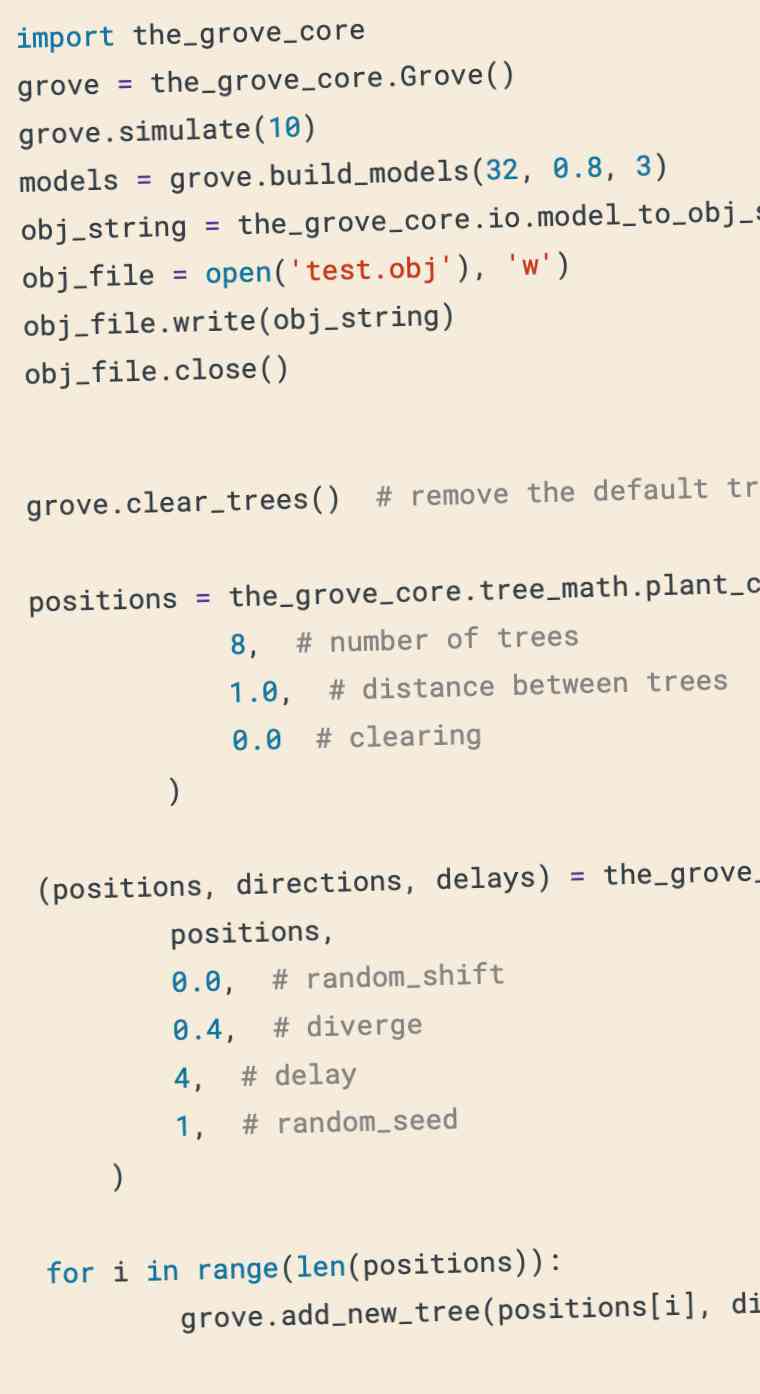
The Grove Core is the compiled Python module that runs the simulation. Add-ons can import the same module into any application with a Python API, or you can even import the core into Python itself.
Blender
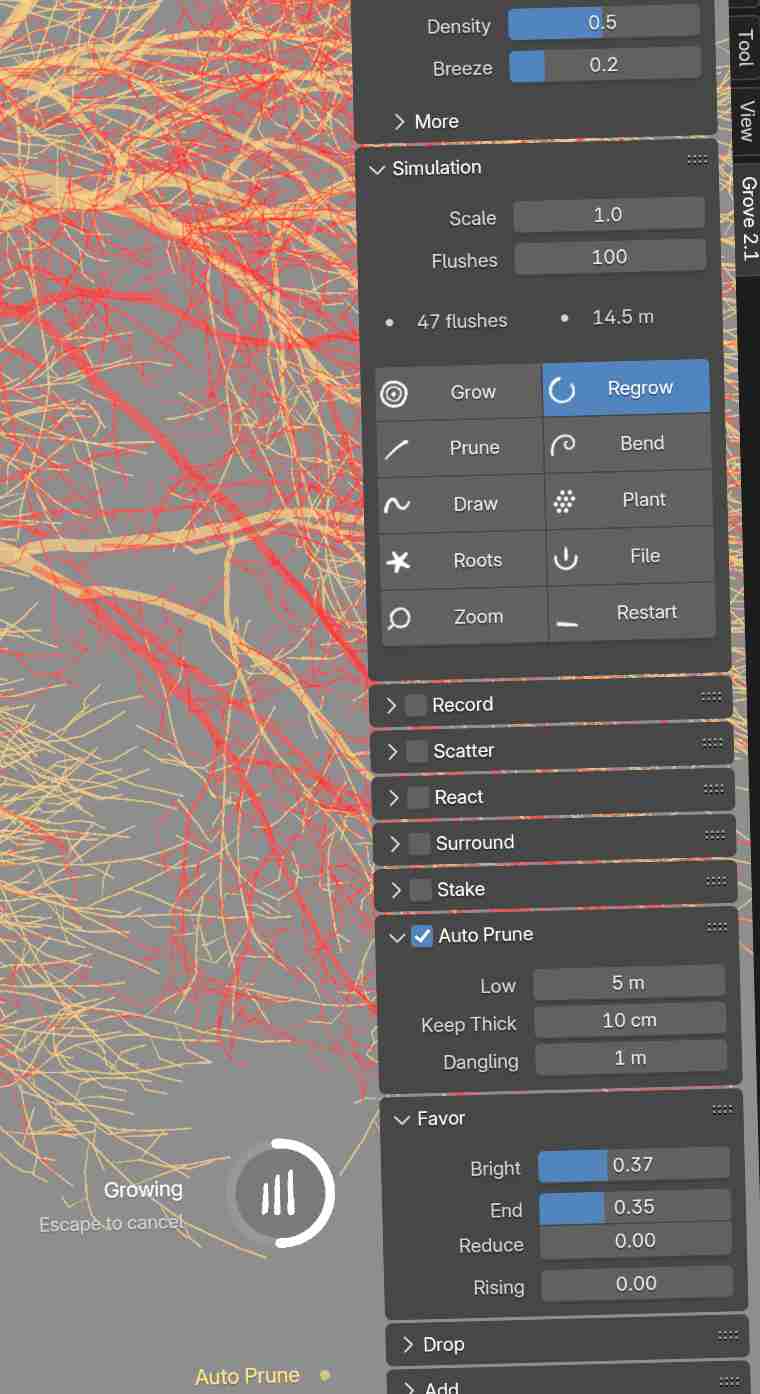
The Grove in Blender adds a bunch of awesome tools for interactive simulation – grow, prune, draw, react, add wind… with 8 years of polish, and still improving.
Houdini
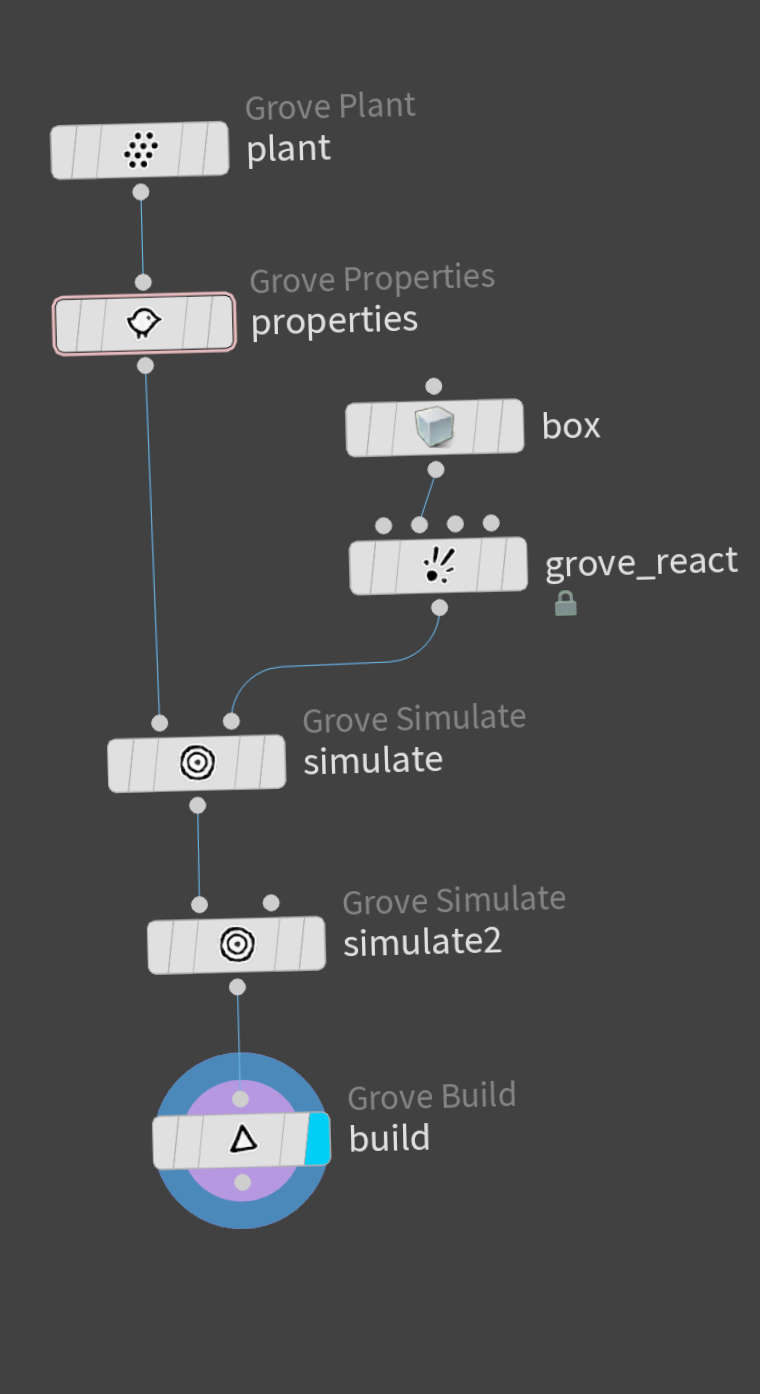
The Grove in Houdini plugs into Houdini’s procedural node network to grow and build trees that are ready for Houdini’s dynamics. Available now with the Studio edition.
Simulation files
Simulations are saved within the working .blend file (and the .hip file for Houdini). In Blender, the simulation is attached to the current grove collection. And in Houdini, the simulation is passed along from node-to-node as a detail attribute.
This makes the simulation portable, as it moves with the working file. A copy of a grove collection in Blender also automatically copies the simulation with it. The new copy can be grown independently from the old original. It also play nice with Blender’s undo system.
The simulation data is stored as a json string. If you want to store the simulation in an external file, you can do so. Files are a good way to stash trees for later use, or to transfer trees between Houdini and Blender. In Blender, you can import and export simulations in .grove files using the File operator. In Houdini, you can use the Grove Import and Grove Export nodes.
Note that the external file has a .grove extension, but it is in fact a zipped json file (.json.zip). You can rename it, then unzip it – the resulting .json file is a simple text file that is easy to work with, just very long.
Presets
The Grove provides great results in minutes – simply start with a preset and you’re good to go. Nature has had millions of years to evolve its presets – The Grove humbly tries to capture these iconic growth forms, with a selection of presets that covers a wide range of tree characters. Studying these will soon teach you each parameter’s impact on a tree’s shape. You can save your own presets by clicking the plus icon next to the preset picker. Presets are saved as plain text JSON files that describe all relevant parameters.
The add-ons share the same presets which are saved to the presets sub folder in your installation folder.